
-
New features in Advanced Dimension Management
Advanced Dimension Filter feature is used for defining the set of filters on Business Central Financial Dimensions for further use in report generating. In current release we have decided to simplify Advanced Dimension Management – from now it is not necessary to open or save the dimension set. You can handle them in the standard BC way, like other header/details datasets.
Additionally, the description of the given filter set is automatically filled in by the selected filter values. It will help to apply proper set for a report or report line.
- Mapping Definition – using advanced dimension filters
Now it is possible to define for mapping lines not only G/L Account but, as an extension, the definition of Advanced Dimension Filter to apply. It means, that for given report line not all values will be tied up, but only values filtered by dimensions defined in Dimension Set.
Let’s look at an example:
It’s an example of PL report where the “Sales Retail North America” has been expanded by values of two already defined financial dimensions: ITEM GROUP and CUSTOMER GROUP.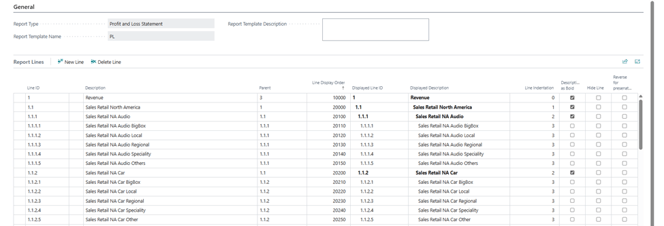 To define a mapping to GL for these lines, first it is necessary to create an Advanced Dimension Set for each line. Example of such definition:
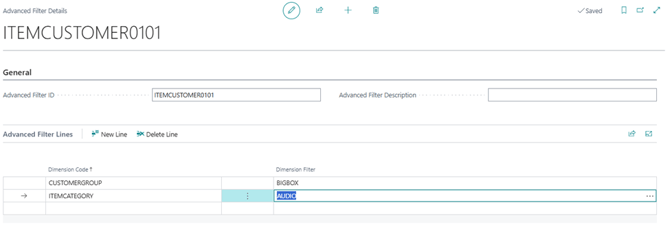 User can apply newly created Advanced Dimension Filter to appropriate mapping line:
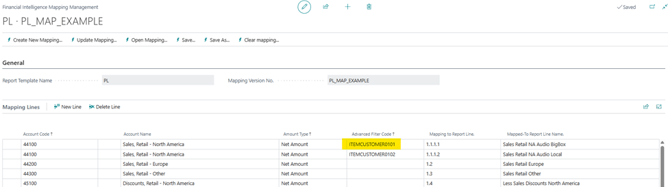 In result, amounts for line 1.1.1.1 will be calculated from account 44100 account entries filtered by defined dimension values.
Described functionality can be necessary to:
- Build more sophisticated mapping scenarios.
- Crossing dimensions for more detailed reporting.
Note: Automatic mapping generating does not cover defining Advanced Dimension Filter. - Mapping Definition – using Debit / Credit sides in mapping
Users can also define separate mapping definition for credit or debit side of account. It can be done by setting 'Account Type' parameter in the mapping line.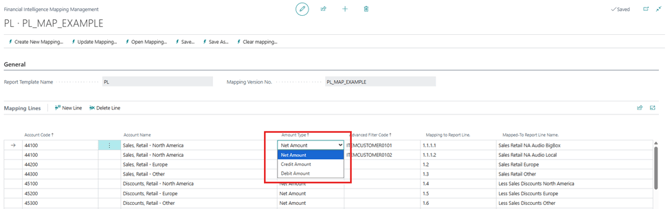
- New drill- through features
If Advanced Dimension filter is used in mapping definition, the drill – through feature works a bit differently than in case of regular lines. After clicking on a given cell number on the report, if the mapping line used for calculation has an Advanced Dimension Filter applied, the list of mapping lines and calculated numbers for each of them will be shown first. Then, user can click on any presented number to go to regular transactions.
 - Quick mapping correction
To speed up the mapping evaluation and allow proactive work with mapping setup, the new feature for mapping handling has been implemented. Now the mapping edition is available from report line level. How to use it:
- Generate the report with given mapping; to speed up the process, choose the simplest one.
- Choose the line for modifying; click “Line Mapping” button.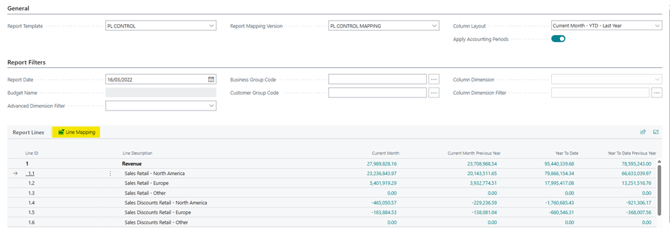
- On the window appearing, you can see all mapping lines from which the given line was calculated.
- If You’ve chosen a summarized report line, you can remove the line from the mapping. - If You’ve chosen a base report line, you can remove or add the line. After clicking “Add Account” you can select available (not tied up to any report line ) accounts to add.
 - Note that only existing mapping lines can be handled in a described way. If it’s necessary to add new account, use Mappin Management in standard way.
Advanced Comparisons.
-
Comparison with another period
One of the most important tasks in the analysis of financial figures is a comparison between current numbers and values of another period. We can imagine number of scenarios of such comparison, so we developed a tool offering the maximum flexibility in performing such task.
How to use it:
- Generate chosen report.
- Go to “Compare” option on main ribbon and click “Compare with other period”.
 - On pop-up window, select the date for report to compare. User can choose one of the predefined options (Previous Month, Previous Year etc.) or select the “Custom date” option and set a date manually. Using “Custom…” option user can set date in the past or future. Predefined options take into consideration the Accounting Period setup.
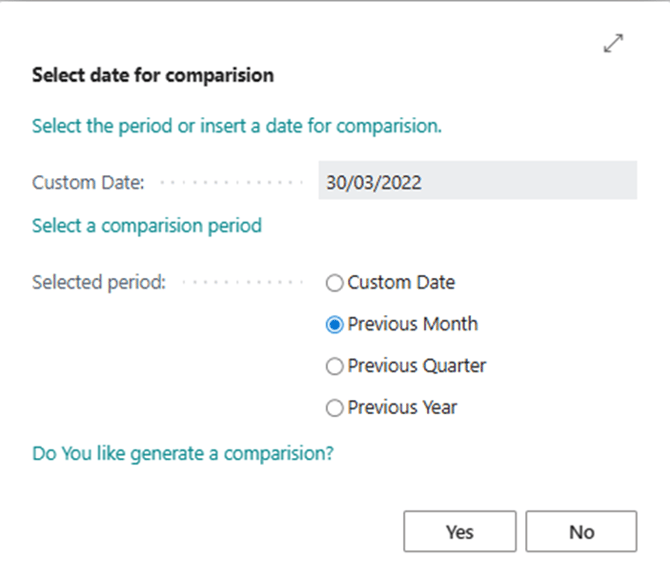 - After clicking “Yes” system will generate an additional report using the same setup but on different date and shows the Variance and Variance% for each line. The label on the top of report informs us about comparison mode.
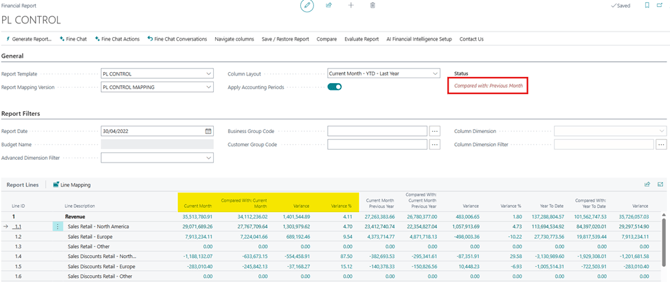 - The Variance is calculated as: later value - earlier value
- The Variance% is calculated as: (later value - earlier value) / (earlier value) * 100%
- Even if users select the date in future according to original report, the calculation scheme is still valid.
-
Comparison with budget
Similar task to described above is a comparison between current data and budget values. To allow that in multiple scenarios, we implemented a solution where the current report is compared with similar values stored as budget amounts.
How to use it:
- Generate chosen report.
- Go to “Compare” option on main ribbon and click “Compare budget”.
- On pop up window select one or more budgets to compare with already calculated actuals..
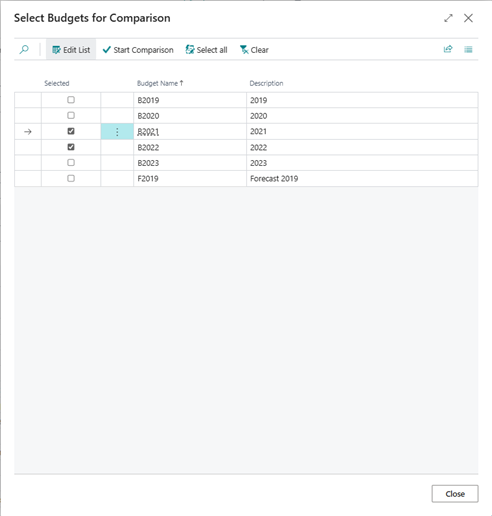
After clicking “Start Comparison” system will generate an additional report using the same setup but based on chosen budget data and shows the Difference and budget% for each line. The label on the top of report informs us about comparison mode.
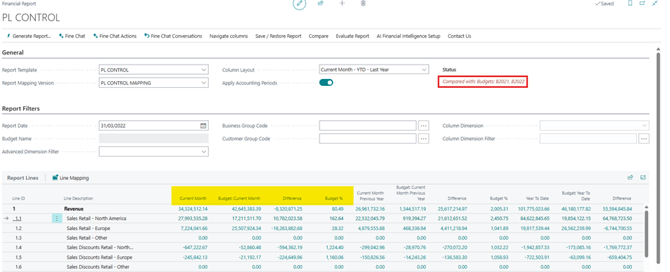
- The Difference is calculated as: Actuals – Budget
- The Difference% is calculated as: Actuals / Budget * 100%
-
Ask about budgets in FineChat
FineChat can use the budget comparison described above to create a story not only about actuals but also to compare it with a plan. Feel free to ask questions about the budget!
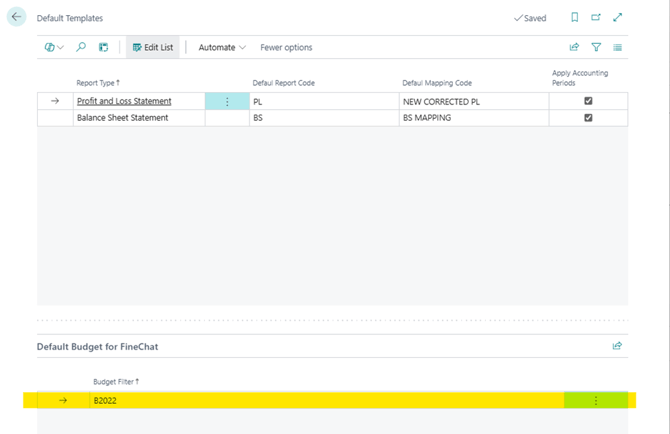
To start using budget features in FineChat, it is necessary to make a small setup: define the default Business Central budgets. To set it up go to „FI Intelligence Setup” -> „Default Templates”. On the window that appears, set the budget names filter to apply it in Fine Chat routines.
-
Using budget comparison feature in budgeting routine.
In addition to budget comparison functionality described above we added small but important feature.
After displaying budget comparison, you can click at the budget amount (standard drill -through action) to review the budget entries on standard Business Central budget entry page. The point is that the user can modify the amounts to correct them. After correcting and closing the window, the source report will be updated so user can evaluate immediately the influence of changes on entire report results.
This option transforms our report facility to ultimate budgeting tool!
Look forward to incoming news about the budgeting workflow example based on this feature.
